
How to implement cold email templates: setup to first send
: Cold email template implementation takes four to six weeks from domain registration to first live send, with full volume at roughly weeks 8-12, and warmup is
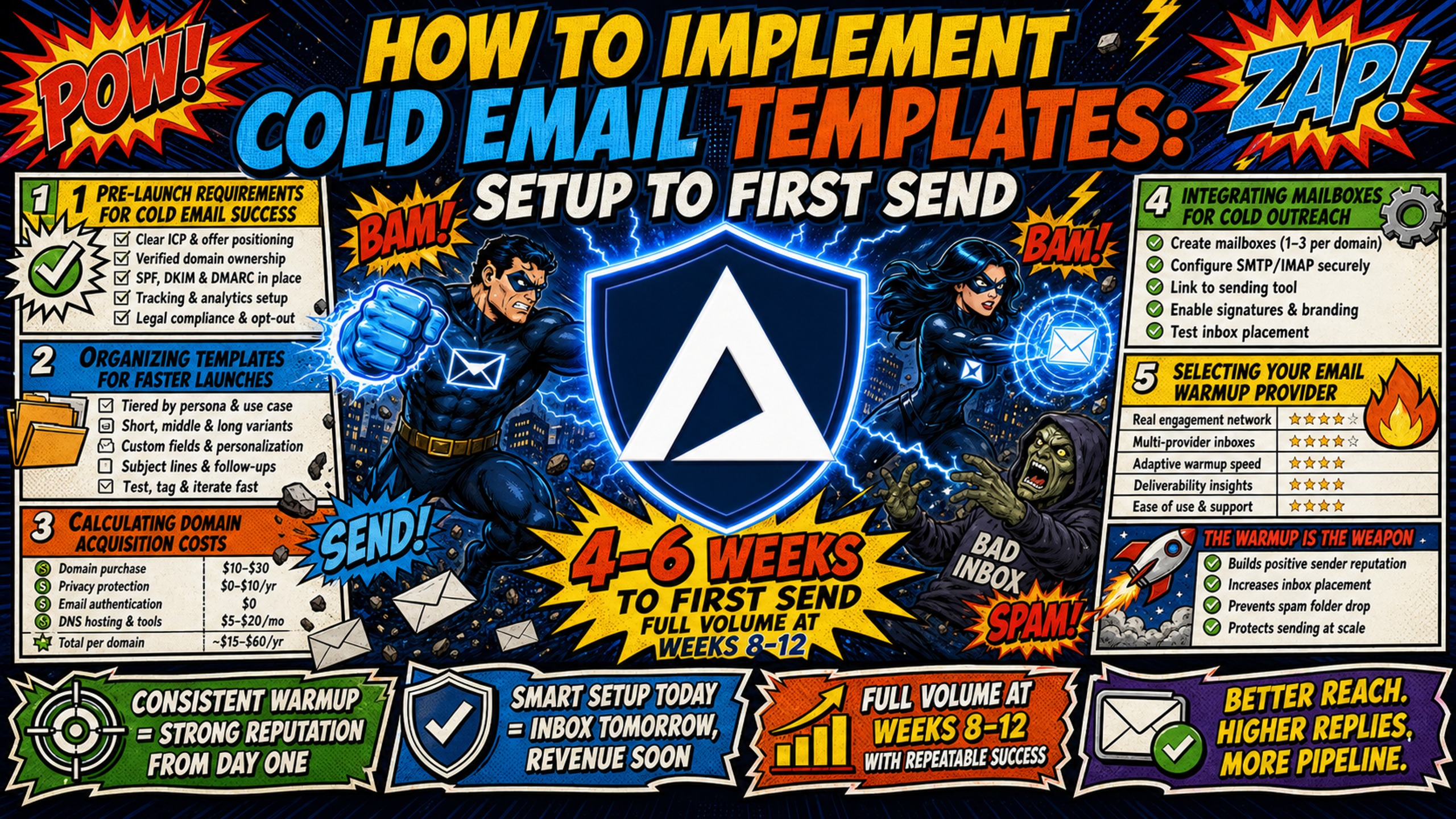
TL;DR: Cold email template implementation takes four to six weeks from domain registration to first live send, with full volume at roughly weeks 8-12, and warmup is the constraint, not copy. The chain runs in order: register sending domains, auto-configure SPF, DKIM and DMARC, provision inboxes, warm them for roughly four weeks, then load sequences and ramp. Gmail and Outlook.com both require SPF, DKIM and DMARC from domains sending more than 5,000 messages a day, and Yahoo requires the same of bulk senders, so authentication and warmup are table stakes rather than an edge. Inframail automates DNS setup and charges $147 a month flat for unlimited inboxes on one dedicated US IP, against $8.40 per inbox on Google Workspace Flexible. Domains ($5-16 a year each) and external warmup tools are additional on both sides.
Setting up 50 cold email domains by hand takes 12 or more hours of DNS panel work. Agencies repeat that work at every new client onboarding. Cold email template implementation succeeds or fails on infrastructure setup before copy ever matters, and a flat-rate, automated DNS approach cuts the setup timeline from days to minutes while keeping per-inbox costs predictable.
The setup runs on five interdependent components in a fixed order: register your sending domains, configure SPF/DKIM/DMARC authentication records, provision your inboxes, initiate warmup, then ramp to volume. Authentication records and inbox creation can run in parallel, but warmup cannot start until both are complete. This guide walks through each dependency in order, with realistic timelines, costs, and the specific settings to configure in your sending platform. Inframail's automated DNS and flat-rate inbox model addresses two critical bottlenecks in that chain: DNS configuration speed and per-inbox cost scaling.
Pre-launch requirements for cold email success
Before you touch a single template, you need four things in place: a template library organized by use case, a domain acquisition budget, a mailbox provisioning plan, and a warmup provider selected. Skipping any of these creates a bottleneck later in the dependency chain.
The table below shows what that budget looks like at 50, 100, and 200 inboxes, covering platform fees, domain costs, and warmup tools across Google Workspace and Inframail.
| Inbox Count | Google Workspace (Flexible) | Inframail Platform | Domain Costs | Warmup Tools (planning ceiling)** |
|---|---|---|---|---|
| 50 | $420/mo ($8.40 × 50) | $147/mo flat | $50-272/year (10-17 domains) | $750-2,500/mo |
| 100 | $840/mo ($8.40 × 100, Flexible Plan) | $147/mo flat | $100-544/year (20-34 domains) | $1,500-5,000/mo |
| 200 | $1,680/mo ($8.40 × 200) | $387/mo (Agency Pack)* | $200-1,072/year (40-67 domains) | $3,000-10,000/mo |
*The Unlimited Plan ($147/mo) covers up to 80,000 sends per month. At 30-40 emails per inbox per workday across roughly 22 workdays, 200 inboxes produces roughly 132,000-176,000 sends per month, which requires Agency Pack at $387/mo, covering up to 300,000 sends per month.
**Warmup tool costs use $15-50 per inbox per month as a planning ceiling. Published per-inbox rates vary: standalone tools such as Warmbox run roughly $15-27 per inbox per month, while some sending platforms bundle warmup at no additional cost.
Organizing templates for faster launches
Group your templates by campaign type (intro, follow-up, breakup) and by ICP segment, which lets you map templates to sequences without rewriting copy at launch time. A shared folder or spreadsheet with template name, target persona, and last performance data (open rate, reply rate) keeps everything findable when you need to launch fast.
Calculating domain acquisition costs
Budget $5-16 per domain per year through Inframail's platform. For 50 inboxes across 10-17 domains, that's $50-272 annually in domain costs, which should be included in your total infrastructure planning alongside platform fees and warmup tools. Inframail's cold email infrastructure cost breakdown shows how these costs compound at different inbox tiers.
Integrating mailboxes for cold outreach
Your mailboxes need IMAP and SMTP credentials that your sending platform can read. Inframail provisions each inbox with these credentials automatically and lets you export them to CSV for bulk import into Instantly or Smartlead. Manual provisioning through Google Workspace or Microsoft 365 admin panels requires creating each inbox individually, which adds hours to every new client launch.
Selecting your email warmup provider
Inframail does not include built-in warmup, so budget for an external tool. Warmup tools such as Warmbox publish three tiers: Solo at $19 a month for 1 inbox, Start-up at $79 for 3 inboxes, and Growth at $159 for 6 inboxes, with annual billing at $15, $69, and $139 (rates checked October 2026). Warming more than 6 inboxes is quote-based, so an agency running 50 or more inboxes will not find a published rate and has to price it with the vendor directly.
Budget $15 to $50 per inbox per month as a planning allowance until you have that quote. Inframail's trade-off is transparent: a lower platform fee per inbox, and you pick your own warmup provider.
Automating your cold email campaign setup
The setup phase is where most campaigns stall. Manual DNS configuration across multiple registrars burns hours that should go toward campaign strategy. Automation cuts this from days to minutes.
Step 1: Select and register sender domains
Register domains that are variations of your primary domain (getacme.com, acme-outreach.com, tryacme.io). Avoid unnecessary hyphens and numbers. Purchase them through your infrastructure platform or transfer existing domains. Inframail handles domain purchases directly in the platform with instant turnaround, eliminating the registrar login shuffle.
Step 2: Configure SPF, DKIM, and DMARC
SPF, DKIM and DMARC are no longer optional. Gmail has required all three from any domain sending more than 5,000 messages a day since February 2024, and Yahoo requires the same for bulk senders.
Outlook.com extended the same requirement in May 2025, rejecting mail from high-volume domains that fail authentication. Getting authentication right puts you at the starting line. It does not put you ahead of it.
Set SPF first, then DKIM per sender, then DMARC in monitor mode (p=none) until alignment is clean. Inframail automates all three records during domain setup, removing the DNS panel work entirely.
"The setup is ridiculously fast. SPF, DKIM, DMARC, forwarding - all handled in literally seconds without me having to dig through docs or guess what records to add." - Verified user review of Inframail
Step 3: Set up user mailboxes
Create inboxes under your authenticated domains. Inframail provisions unlimited Microsoft email inboxes under dedicated US-based IPs (1 IP on the Unlimited Plan at $147/month, 3 on Agency Pack at $387/month) and generates IMAP/SMTP credentials automatically for each inbox. Google Workspace charges $8.40 per inbox per month on the Flexible Plan, so 50 inboxes cost $420/month before you send a single email. Domains and external warmup tools are additional on both sides.
Step 4: Enable automated inbox warmup
Connect your inboxes to your warmup provider immediately after provisioning. The warmup clock starts ticking from day one, and every day of delay pushes your launch date back. Most warmup tools require IMAP credentials to connect, which Inframail generates during inbox creation. Inframail's warmup guide covers exporting inboxes and uploading them to your warmup and sending platforms.
Step 5: Import credentials into platform
Export your inbox credentials to CSV from Inframail's dashboard and import them into your sending platform using the bulk import feature. Host addresses, port numbers, and platform-specific column headers are covered in the sequence settings section below.
Cold email template selection and customization
Templates are the payload your infrastructure delivers. A well-structured template sent from a properly authenticated domain on a dedicated IP will usually reach the inbox when brilliant copy sent from a flagged shared IP does not.
Refine template messaging for your ICP
Map each template to a specific ICP segment before you load it into your sending platform, and pull performance data from past campaigns (reply rate, meeting booked rate) to identify which templates deserve a spot in your active rotation. A template targeting VP Sales at SaaS companies should reference different pain points than one targeting agency owners.
Format tokens for custom fields
Most sending platforms support personalization tokens like {{first_name}}, {{last_name}}, {{company}}, {{email}}, and {{title}}. Map your CSV column headers to the correct tokens in your sending platform before launch. If your prospect list has "First Name" as a column header, map it to {{first_name}}. Test every token by sending a preview to yourself, because a broken token that renders as "{{first_name}}" in the subject line signals spam to both filters and humans.
Structure your cold email copy
Keep templates between 50 and 125 words, a range where Boomerang's analysis of 40 million emails found response rates held above 50% and declined steadily past it (that dataset covered general business email rather than cold outreach, but the direction holds). Lead with a specific observation about the prospect's business, follow with a relevant outcome you've delivered for similar companies, and close with a low-friction ask.
Avoid attachments, excessive links, and image-heavy formatting. Google's email sender guidelines require spam rates in Postmaster Tools to stay below 0.3%, and recommend keeping them under 0.1%, and spammy subject lines, link-heavy bodies, and attachments are the content patterns that push rates toward that ceiling.
Ensure CTA clarity in cold emails
One call to action per email. "Do you have 15 minutes Thursday?" outperforms "Let me know if you'd like to chat, or I can send over a case study, or here's a link to our calendar." Multiple CTAs split attention and reduce reply rates. Keep the ask small and specific.
Finalizing sequence settings for live delivery
Sequence settings determine whether your carefully warmed domains maintain their reputation or burn out in the first week. Get these right before you import a single prospect.
Import IMAP and SMTP credentials
Your sending platform needs working IMAP credentials (to read replies) and SMTP credentials (to send emails). Inframail generates both during inbox provisioning and formats them for CSV export. For Microsoft 365-based inboxes, the IMAP host is typically outlook.office365.com on port 993, and the SMTP host is typically smtp.office365.com on port 587. Inframail's credential export and import guide covers platform-specific column headers and the current authentication method required for IMAP connections. Confirm that before configuring credentials, as Basic Authentication for IMAP in Exchange Online is already deprecated.
Microsoft has already deprecated Basic Authentication for IMAP in Exchange Online, per Microsoft's lifecycle announcement, meaning password-based IMAP connections are no longer available on new tenants. For SMTP AUTH, the situation is different. Basic Authentication remains active for existing tenants until the end of December 2026, after which it will be disabled by default. New tenants created after December 2026 will not have SMTP AUTH Basic Authentication available by default, with OAuth as the supported method, per Microsoft's January 2026 exchange team blog.
Establish safe daily sending volume
Cap each inbox at 20-30 campaign emails per day for live sends, keeping combined daily volume (campaign plus warmup) within the 40-50 ceiling Inframail's guidance sets. Inboxes in weeks 1-2 of warmup stay under 25, then step up with the schedule in the warmup milestones section below. Established mailboxes with strong reputations can handle higher volumes safely, but pushing beyond 50 per day consistently causes deliverability problems.
Inframail's Unlimited Plan supports up to 80,000 cold emails per month across your inbox fleet. Read Inframail's sending capacity guide to help you match inbox count to volume targets.
Define your cold email wait windows
Space follow-ups several days apart. A common 4-email sequence pattern runs: Day 1 (intro), Day 4 (follow-up 1), Day 8 (follow-up 2), Day 14 (breakup). Vary send times across the working day instead of firing everything at 9:00 AM. Sending platforms like Instantly and Smartlead let you set per-inbox daily limits and control the time gap between sends.
Test your tokens before launch
Token mapping and testing are covered in the template customization section above. Before launching to your full list, send a test batch of 5-10 emails to internal addresses to confirm every token resolves correctly.
Set reply, bounce, and unsubscribe rules
Define what happens when a prospect replies, bounces, or unsubscribes. Most platforms auto-pause sequences on reply and auto-remove on unsubscribe. Treat a bounce rate at or above 2% as a list quality problem to fix before the next send, which is the level Inframail's healthy-metrics guidance flags as critical. Sustained hard bounces signal a stale list to mailbox providers, and that costs inbox placement across every domain you send from.
Required warmup milestones for new sending domains
Warmup is the longest dependency in the chain and the one stakeholders most often try to skip. Don't skip warmup. New domains have no sending history, so ISPs apply more scrutiny to sudden volume and will route the majority of it to spam.
Week 1: Setting up baseline deliverability
Send 3-5 warmup emails per day per inbox, all within the warmup network, with no cold sends. Monitor for spam folder placement and confirm zero blacklist flags. If week 1 metrics are clean (no spam placement, bounce rate below 2%, complaint rate below 0.1%), you're on track to increase volume.
Week 2-3: Increasing daily send limits
Ramp to 15-25 emails per day in week 2, when limited live cold sends begin. Mix a small percentage of real prospect emails in alongside warmup network sends to verified addresses. By week 3, push to 30-40 per day with an increasing proportion of real sends. Gradual ramping builds the positive engagement signals (opens, replies, no complaints) that establish sender reputation.
Week 4: Validating domain readiness
Reach 40-45 emails per day with a majority of real sends to prove headroom, then settle back to 20-30 campaign emails per day as your steady-state for ongoing campaigns. Inframail's guidance is 20-30 campaign emails per inbox per day alongside 20-30 warmup emails, for a 40-50 combined daily ceiling.
Confirm inbox placement rates above 80% through seed testing before you consider the domain ready for full campaign volume, using Inframail's healthy-metrics guide as the benchmark (80-100% = Excellent, 60-80% = Needs improvement).
Monitoring inbox placement progress
Track inbox placement rate, bounce rate, and spam complaint rate daily during warmup. Inframail's dashboard monitors domain and IP health with blacklist tracking and auto-submits delisting requests when domains are flagged.
| Week | Daily Volume | Warm/Cold Mix | Validation Check |
|---|---|---|---|
| 1 | 3-5/day | 100% warm | Zero blacklist flags, no spam placement |
| 2 | 15-25/day | 80% warm / 20% cold | Bounce rate under 2% |
| 3 | 30-40/day | 50% warm / 50% cold | Strong engagement on warm sends |
| 4 | 40-45/day | 30% warm / 70% cold | Inbox placement rate above 80% |
Warmup tool costs (up to $15-50 per inbox monthly as a planning ceiling) and domain costs apply throughout this period on both DIY and Inframail approaches.
Validate and launch your first campaign
Your domains are approaching the end of warmup and have been taking limited live cold sends since week 2. The final phase is validation and controlled full-volume launch.
Validate deliverability via seed addresses
Send your templates to a seed list (test addresses across Gmail, Outlook, Yahoo, and Apple) before your first full-volume send. Seed testing can catch blacklists and content flags before they hit your prospect list. Seed testing services check inbox placement across multiple real inboxes.
Audit inbox health before first full-volume send
Check every inbox for blacklist status, authentication pass rates, and warmup completion. Inframail's dashboard shows domain and IP health in one view, which beats logging into separate tools for each check. Confirm SPF, DKIM, and DMARC all pass before proceeding.
Import your prospect CSV files
Upload your verified prospect list to your sending platform. Map column headers to personalization tokens. Run the list through a validation tool (NeverBounce, ZeroBounce, MillionVerifier) if you haven't already. A new domain has no sending history to offset a bad signal, so hard bounces during warmup carry more weight than the same bounces on an established domain.
Start small to stabilize deliverability
Send to 10-20% of your list on day one. Monitor bounce rate, spam complaints, and reply rate for 48 hours. If metrics stay clean (bounce under 2%, complaints under 0.1%), scale to full volume gradually over the following 4-6 weeks. That ramp runs after the initial implementation period, putting full volume at roughly weeks 8-12 from domain registration.
Analyze initial 48-hour deliverability
Check inbox placement, reply rate, and bounce rate after the first 48 hours. A reply rate drop while open rates hold steady points to messaging or targeting, not placement, but opens and replies falling together point to spam folder placement. Apple Mail Privacy Protection pre-loads tracking pixels. This may inflate open rates, making opens alone a weak signal for inbox placement. High bounces suggest list quality problems. Inframail's deliverability monitoring helps tell these apart.
| Symptom | Root Cause | Fix |
|---|---|---|
| Open and reply rates drop together | Spam folder placement | Run seed test, check blacklist status, reduce volume |
| High bounce rate (above 2%) | List quality issues | Validate list, remove invalid addresses, review data source |
| Blacklist flag appears | Volume spike, complaint spike, or list hygiene | Submit delisting request, pause sends, review content and targeting |
| Authentication failures | DNS records not propagated | Wait 24-48 hours, verify SPF/DKIM/DMARC in DNS panel |
The full implementation timeline typically runs 4-6 weeks: 1-2 days for domain registration and authentication, same-day inbox provisioning, approximately 4 weeks of warmup, and several days for sequence configuration and validation. Inframail compresses the infrastructure side from days to minutes, but the warmup clock runs regardless of how fast your DNS records propagate.
Start sending with Inframail
Inframail is a flat-rate Microsoft email infrastructure platform built for agencies running 50-200 cold email domains. It automates SPF, DKIM, and DMARC configuration during domain setup, provisions unlimited inboxes under dedicated US-based IPs, and charges $147/month flat on the Unlimited Plan (up to 80,000 sends per month) and $387/month on the Agency Pack (up to 300,000 sends per month, three dedicated IPs).
At 200 inboxes sending 30-40 emails per day, Agency Pack is the applicable plan. The platform reports 98%+ deliverability and a 68.3% blacklist delisting success rate within 48 hours, built on Microsoft's cloud through an enterprise partnership announced in January 2024.
Watch this case study video and see how Inframail helped a client scale its cold email infrastructure with fast support and 1,500 additional inboxes, become its largest email infrastructure provider, and support outreach that converted a six-figure deal.
Sign up to Inframail and get started today.
FAQs
How long does implementation take end-to-end?
Four to six weeks minimum from domain registration to first live send, with full volume at roughly weeks 8-12 and the warmup period (4 weeks) as the longest dependency. Infrastructure setup with automated DNS takes minutes instead of the hours manual configuration requires for 50 domains.
Can I skip warmup if I'm using a new domain?
No. Fresh domains have zero sender reputation, and ISPs apply more scrutiny to sudden volume from new domains, routing the majority of it to spam until positive engagement signals accumulate.
How many domains do I need for a cold email campaign?
Plan for 3-5 inboxes per domain and 20-30 campaign emails per inbox per day. A campaign targeting 1,500 emails per day needs roughly 50-75 inboxes across 8-17 domains, depending on how many inboxes you run per domain.
What happens if I send before warmup finishes?
ISPs flag sudden volume spikes from new domains as suspicious. Instantly recommends no more than 30 campaign emails per account per day, and exceeding that on a domain still in warmup is what gets inboxes flagged. Spamhaus CSS entries generally expire three days after the last detection, and reputation recovery takes longer than delisting.
Should I use Google Workspace or a dedicated inbox provider?
Google Workspace works for teams already in the Google ecosystem. At 50+ inboxes, Inframail's flat-rate $147/month is $273/month less than Google Workspace's $420 Flexible rate before domain costs and warmup tools, which apply on both sides, with automated DNS setup and dedicated IPs included. External warmup tools are additional on both sides.
What does cold email infrastructure cost at 50, 100, and 200 inboxes?
Google Workspace Business Starter costs $420/month at 50 inboxes, $840 at 100, and $1,680 at 200 (Flexible Plan at $8.40/user/month). Inframail charges $147/month (Unlimited Plan, up to 80,000 sends per month) or $387/month (Agency Pack, up to 300,000 sends per month). At 200 inboxes sending 30-40 emails per day, Agency Pack is the applicable plan. Domain costs ($5-16/year each) and warmup tools are additional on both sides.
Key terms glossary
SPF (Sender Policy Framework): A DNS record that lists which IP addresses are authorized to send email on behalf of your domain. Receiving servers check this record to verify sender identity.
DKIM (DomainKeys Identified Mail): A cryptographic signature attached to outgoing emails. The receiving server validates the signature against a public key published in your DNS records.
DMARC (Domain-based Message Authentication, Reporting, and Conformance): A DNS policy that tells receiving servers how to handle emails that fail SPF or DKIM checks. Start with p=none (monitor mode) before enforcing.
Inbox placement rate: The percentage of sent emails that land in the recipient's primary inbox rather than spam or promotions folders. Authentication and warmup are what keep senders in the inbox rather than the spam folder.
Warmup: The process of gradually increasing send volume from a new domain or inbox over 4 weeks. This builds sender reputation with ISPs through positive engagement signals.
Dedicated IP: An IP address used exclusively by your sending accounts. Your sender reputation is not affected by other users, unlike shared IP pools.
Sender reputation: A score ISPs assign to your domain and IP based on sending behavior, engagement rates, bounce rates, and spam complaints. Higher reputation means better inbox placement.
IMAP (Internet Message Access Protocol): The protocol your sending platform uses to read incoming replies to your cold emails. Required for reply detection and sequence automation.
SMTP (Simple Mail Transfer Protocol): The protocol used to send outgoing emails from your inboxes. Your sending platform connects via SMTP to deliver campaigns.
Seed list: A set of test email addresses across major providers (Gmail, Outlook, Yahoo) used to check inbox placement before sending to real prospects.